Setup guide

IPTV on Smart TV

Most connected televisions can run an IPTV player straight from their own app store, with no extra hardware at all. Which players are listed depends on the manufacturer, the operating system and how old the set is.

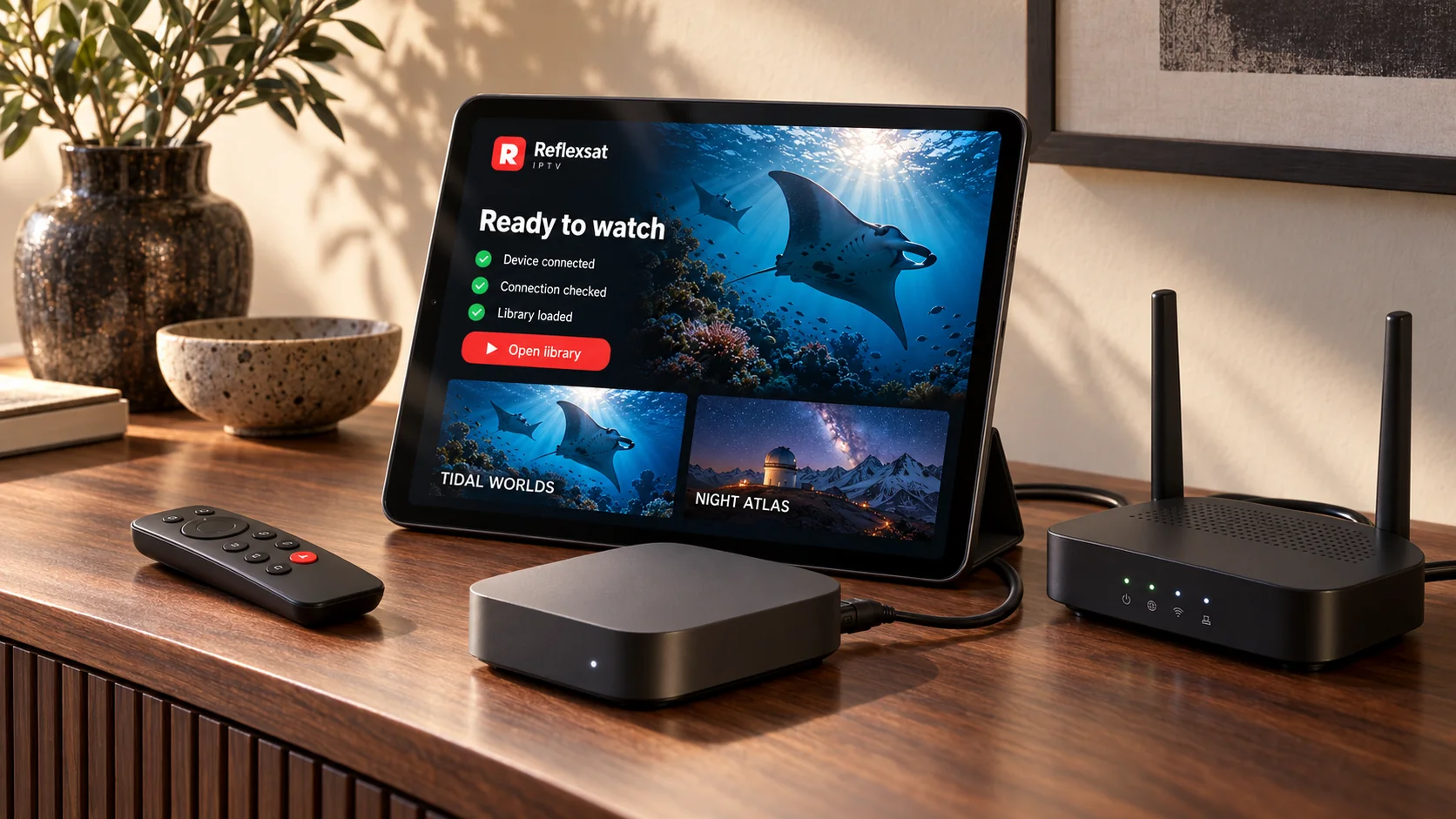
Streaming box, router and tablet showing the connection steps completed.

Which player you need

Samsung sets use the Samsung App Store, LG sets use the LG Content Store, and other manufacturers use their own equivalent. Tell us the make, model and year of your television and we will confirm which player to install before you order.

We confirm the right player for your exact model before you install anything, because what is available in a given store changes by region and by the age of the device. Send us the make and model and you will get a specific answer rather than a list to work through.

Televisions more than a few years old sometimes have no suitable player left in their store. If that is the case for your set, a small streaming stick or box plugged into an HDMI port solves it, and the television keeps working exactly as it does now.


Step by step

Installing on Smart TVs

  1. Connect the television to your home network and confirm it can reach the internet.
  2. Open the television’s own app store from the home screen.
  3. Search for the IPTV player we confirmed for your model and install it.
  4. Open the player and find the screen where account or playlist details are entered.
  5. Enter the details exactly as we sent them, including any capital letters.
  6. Wait for the programme list to load the first time, then start watching.

If the picture stutters

Start with the connection. A wired Ethernet link between the router and this device removes more playback problems than any other single change. Where a cable is impractical, use the 5 GHz band and keep the device within good range of the router rather than behind the television in a cabinet.

Next, rule the account out. Open the same account on a phone over the same network. If the phone plays cleanly, the subscription is fine and the difference is this device or its connection. If the phone struggles too, tell us — that is a different problem and we will look at it from our side.

If a single channel will not start

One channel misbehaving while everything else plays is almost never a device problem. Make a note of exactly which channel it is and when you tried, and send that to us. It is far more useful than a general report that something is not working.

Keeping it working

Restart the device every so often rather than leaving it on standby indefinitely, keep the player updated when its store offers an update, and keep the message containing your account details. You will want those details again if you replace the device or reset it.

Other setup guides

Amazon Fire TV & Firestick

Fire TV Stick, Fire TV Cube and Fire TV built-in

A Fire TV stick is the most common way to add streaming to a television that cannot do it alone. It plugs into an HDMI port, runs on its own remote and handles IPTV players comfortably.

Android TV & Google TV

Android TV boxes, Google TV sticks and built-in Android televisions

Android TV and Google TV give you the widest choice of IPTV players of any television platform, because almost every player is built for Android first.

Apple TV

Apple TV HD and Apple TV 4K

Apple TV is a straightforward platform for IPTV: everything is installed from the tvOS App Store, there is nothing to sideload, and playback is consistent.

Android phones & tablets

Phones and tablets running Android

A phone or tablet is the easiest way to test a new subscription, because you can set it up in a couple of minutes and confirm everything works before touching the television.

iPhone & iPad

iOS and iPadOS devices

iPhone and iPad work in much the same way as Apple TV: the player comes from the App Store and setup is a single screen.

Windows & Mac computers

Desktop and laptop computers

A computer is a useful second screen and an excellent way to check whether a problem lies with your television or with the connection itself.

Next step

Ready to explore Reflexsat IPTV?

Browse the available subscription options, or send us a message and we will help you choose a plan and get your device set up.

Chat on WhatsApp